How to Transfer Messages from iPhone to PC?
Please download and install the latest version of Tansee iPhone Message Transfer from this link.
Additionally, to access iPhone messages, you will need to install the Apple Mobile Device Support component 64-bit or 32-bit.
Another option: 'Apple Mobile Device Support' component is included in iTunes. Click iTunes download link to download and install the latest version of iTunes and verify that it is able to read your iPhone, iPad or iPod Touch.
What to Do If iTunes does not recognize my iPhone?
What to Do if iTunes can not be installed or uninstalled?
Another option: 'Apple Mobile Device Support' component is included in iTunes. Click iTunes download link to download and install the latest version of iTunes and verify that it is able to read your iPhone, iPad or iPod Touch.
What to Do If iTunes does not recognize my iPhone?
What to Do if iTunes can not be installed or uninstalled?
Connect your iPhone or iPad or iPod to your PC with a USB cable.
What to Do If Tansee iPhone Message Transfer Does Not Recognize My iPhone?
If you have a large number of apps or photos, Tansee will take longer time reading data.
What to Do If Tansee iPhone Message Transfer Keeps Reading Data?
If asked, unlock your iOS or iPadOS device using your passcode. If you see a prompt on your iOS or iPadOS device asking you to Trust This Computer, tap Trust to continue.
If you have a large number of apps or photos, Tansee will take longer time reading data.
What to Do If Tansee iPhone Message Transfer Keeps Reading Data?
If asked, unlock your iOS or iPadOS device using your passcode. If you see a prompt on your iOS or iPadOS device asking you to Trust This Computer, tap Trust to continue.
Have you encountered any problems?
How to Fix 'Disk is Full' Error?
How to Fix 'This iPhone requires backup files to be encrypted. Enter a password to protect your iPhone backup' Error?
Where Does iTunes Store Backups and How to Find Themt?
How to Extract iTunes Backup Files?
How to Uncheck iTunes Backup Password?
How to Reset iTunes Encrypted Backup Password?
How to Fix 'This iPhone requires backup files to be encrypted. Enter a password to protect your iPhone backup' Error?
Where Does iTunes Store Backups and How to Find Themt?
How to Extract iTunes Backup Files?
How to Uncheck iTunes Backup Password?
How to Reset iTunes Encrypted Backup Password?
After Tansee reads out all the messages, click the button labeled 'Save' located at the bottom of the screen.
Choose to save all your iPhone, iPad, or iPod messages to your PC in ANTS, HTML, TEXT, PDF or JPG format.
By selecting save to .ANTS format, you can backup all messages from iPhone or iPad to computer, and also set a password to protect your SMS, MMS and iMessages database for personal privacy.
Select the desired contact from the Tansee contact list, and then click 'Save.'
Select the messages by date and then click 'Save'.
By selecting save to .ANTS format, you can backup all messages from iPhone or iPad to computer, and also set a password to protect your SMS, MMS and iMessages database for personal privacy.
Select the desired contact from the Tansee contact list, and then click 'Save.'
Select the messages by date and then click 'Save'.
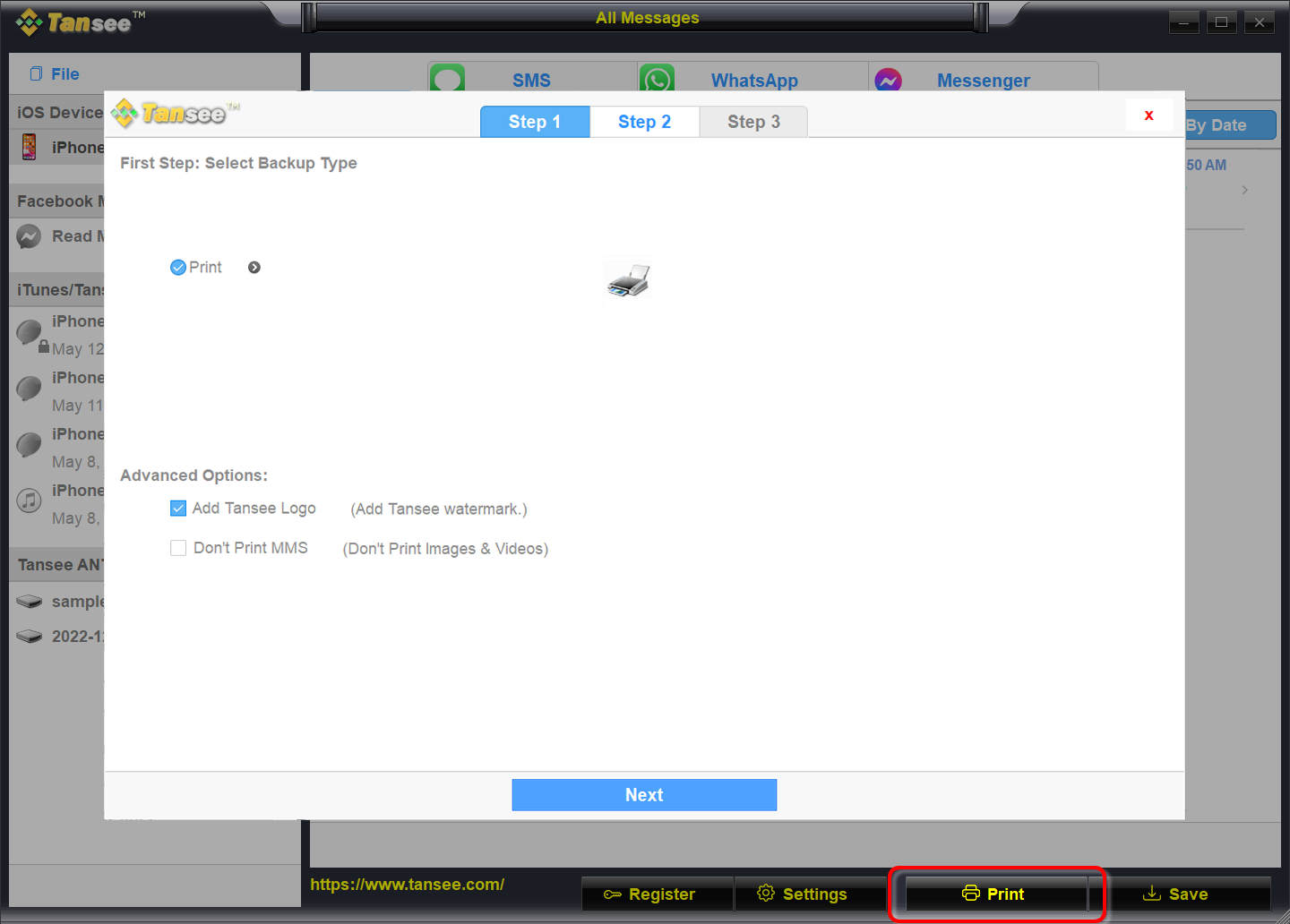
Click 'Print' button. Click 'Start Print'. Print messages exactly as they appear on your iPhone.
Print Messages